Overview
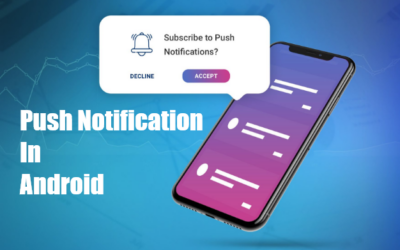
Overview A notification is a message that displays outside the app. Normally notification is used as a reminder or to convey a message from other people. We can divide the notification into two parts.
- Local Notification
- Remote Notification
Local Notification
Local notification means the notification will be triggered locally and not related to the external medium of communication, for example, we set an alarm in our device at any particular time and we get a notification. In general, we can see the android system default notifications regularly in our life. Similarly, notification of battery down alert and other such notifications are categorized in the local notification.
Remote Notification
The remote notifications are those triggered through an external medium. In real-time scenario, remote notifications are received from commercial and other messenger apps when the device is connected to a network. Many cloud providers such as amazon, google cloud, azure provide notification as Iaas(Infrastructure as a service). Here we are going to discuss Firebase Cloud Messaging offered by google cloud and its features and Implementation in android.
FCM Features
- The FCM supports all platforms and helps to send messages reliably at free of cost which increases its audience
- It supports notification and data messages
- The FCM automatically sends messages on behalf of the client app in the Notification message.
- The data message is processed in the client app that triggers the message.
- Except when sending messages from the firebase console, which enforces a 1024 character limit, the maximum supported payload for both message types is 4Kb.
Register your app with Firebase
Step 1: Open the Firebase console
Step 2:Click on Add project and give a name to your project and select country. If you’ve already started a project, you can skip this step.

Step 3:Click the Android icon in the center of the project overview page

Step 4: Enter your app’s package name in the Android package name field and (Optional) enter other app information: App nickname and Debug signing certificate SHA-1.
Step 5: Click Register app.
Generating SHA-1 Key Using Android Studio
- Open your project in Android studio.
- On the right, select the Gradle tab.
- Crumble: App module -> Tasks -> Android -> signing report ->
- SHA-1 will generate. Copy and paste into SHA-1 in the firebase console
Adding Firebase Configuration File
Step 1: Click Download google-services.json

Step 2: Move your config file into the module (app-level) directory of your app
Step 3: Add Google Services Gradle plugin in project level build.gradle
buildscript {
  dependencies {
    // Add this line
    classpath ‘com.google.gms:google-services:4.3.2’
  }
}
Step 4: Apply the Google Services Gradle plugin in app level gradle file
apply plugin: ‘com.google.gms.google-services’Step 5: Add the dependencies for the Firebase messaging products to use in app level gradle.
implementation ‘com.google.firebase:firebase-messaging:20.2.0’
App Manifest
Add the following to your app’s manifest
<service
    android:name=“.java.MyFirebaseMessagingService”
    android:exported=“false”>
    <intent-filter>
        <action android:name=“com.google.firebase.MESSAGING_EVENT” />
    </intent-filter>

</service>

publicclass MyFirebaseMessagingService extends FirebaseMessagingService {
@Override    public void onMessageReceived(RemoteMessage remoteMessage)
{
Log.d(TAG, “From: “+ remoteMessage.getFrom());
}
}
Sending push notification using firebase console
- Go to the firebase console and select the app you created.
- From the left menu select notification.
- Click on a new message.
- Enter the message, choose a single device, paste the token you copied, and then click Send.
Handling Messages at app
The Firebase API generally supports two types of messages as discussed above
- Notification
- Data
Notification Message
These Messages are received at android notifications tray if your application is in background/Killed or gets delivered to onMessageReceived() method if your app is in foreground.Here we can also send messages from firebase console
sample notification payload

{
    “notification” : { “body” : “Hi Iam notification”}
}
Data Message
It does not depend on whether your application is in foreground or background or killed , these messages will always be delivered to onMessageReceived() method.
sample notification payload

{
    “data” : { “message” : “Hi Iam data payload”, “whatever_key”: “value”}
}
Important: Data payload messages cannot be sent from the Firebase Console. Console only delivers notification messages. However using API you can send both types of messages.
To send data payload message we have to make curl request.A sample POST method is shown below:
POST-Payload
https://fcm.googleapis.com/fcm/send
Content-Type:application/json
Authorization:key=AI………..aA
{ “data”: {
    “name”: “hi”,
    “place”: “global”
  },
  “to” : “(device token)”}
You can get the server key (AI…………aA), from firebase console: Your project -> settings -> Project settings -> Cloud messaging -> Server Key